The Video Editor
The TellFrame video editor is a powerful tool for customizing and perfecting your videos.
Editor Overview
The editor is divided into several key areas:
1. Canvas (Preview)
The main preview area where you see your video. You can:
- Preview your video in real-time
- Click on elements to select and edit them
- See changes as you make them
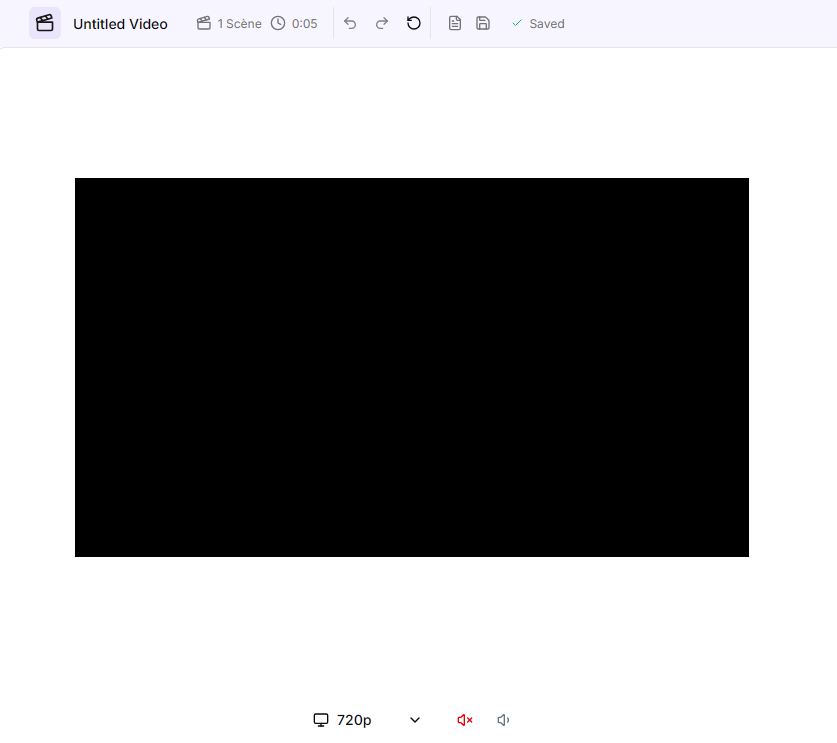
TellFrame Editor Canvas
2. Timeline
The bottom section showing all your video scenes:
- Scenes - Individual video segments
- Tracks - Different layers (media, audio, captions, elements)
- Playhead - Current position in your video

TellFrame Editor Timeline
3. Sidebar Tabs
Access different editing tools:
Captions Tab
- Create captions
- Change fonts, colors, sizes
- Add caption animations and layouts
- Choose caption style
Media Tab
- Add images and videos
- Browse stock media
- Manage your media library
- Record from a webcam
Elements Tab
- Create custom AI-generated elements
- Add pre-built overlays: texts, countdowns, progress bars
- Add pre-built charts and KPI cards
- Insert stickers & emojis
- Add your own custom elements
- Manage media elements like b-rolls
Audio Tab
- Add background music
- Import audio files
- Adjust volume levels
Speech Tab
- Configure text-to-speech
- Choose voices and languages
Effects Tab
- Apply video filters
- Color grading
- Adjust brightness, contrast
- Add visual effects
Branding Tab
- Apply brand kits
- Add logos
- Use brand colors and fonts
- Maintain consistency
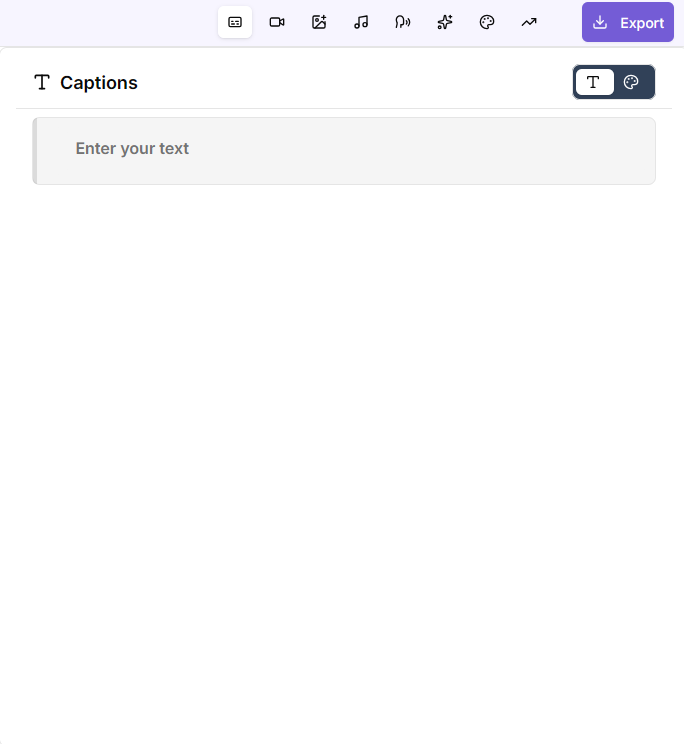
TellFrame Editor Sidebar
4. Editor Chat
The chat is an assistant that will help you build or change your video. You can ask it to:
- Add media to your video
- Create custom background elements, like rotating texts or gradient backgrounds
- Add/Delete scenes
- Update scenes: change the fonts, sizes, color, stroke, rotation
- Change the caption style
- Add a voiceover
- Add audio tracks
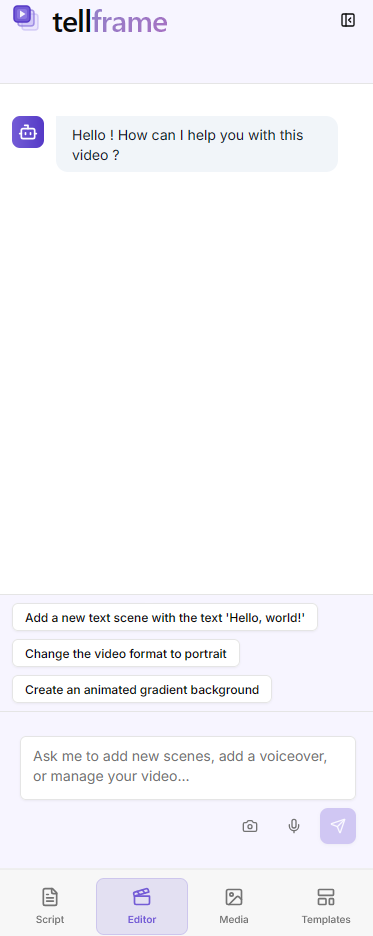
TellFrame Editor Chat
Common Editing Tasks
Adding Text
- Go to Captions tab or select a Caption scene in the timeline
- Type your text
- Customize font, size, color
- Position on canvas
Changing Background
Option A: From the timeline
- Click on a Media scene in the timeline
- The media toolbar shows under the video player
 TellFrame Media toolbar
 - Click on the first button Add Background
- Select your media from your library or stock
Option B: From the media tab
- Click on the Media tab in the sidebar menu
 TellFrame Media tab
 - Right-click on any image or video to open the menu and click on Add to new scene, or select the existing scene shown after Add to existing scene
- You can also drag & drop the selected media into any media scene in the timeline
Adding a background element
TellFrame offers a wide variety of pre-designed elements that can enhance your video:
- Overlays: texts, countdowns, progress bars
- Data elements: charts and KPI cards
- Stickers & emojis
To add these elements, select the Elements tab and click on an element. It will show in your video and you'll be able to customize it in the sidebar editor.
Adding Music
- Go to Audio tab
- Browse music library
- Select a track
- Adjust volume
Adding a Voiceover
Option A: Pre-built voices
- Go to Speech tab
- Select a language
- Select a voice
- Click on Play: the voiceover will be automatically generated
Option B: Import your custom voice
- Go to Speech tab
- Click on Add custom audio
- Record your own voice: click on Setup Microphone and record your voice scene by scene
- Or import audio files: click on Import Files and select an audio file for the whole video or a specific scene
Applying Effects
- Select a scene or element
- Go to Effects tab
- Choose an effect
- Adjust intensity